1. How to Open Scripture Link
You can open Scripture Link right from your Google Document without leaving the page.
- The Easy Way: Look at the top menu of Google Docs. Click on Extensions, then Scripture Link, and click Open Sidebar.
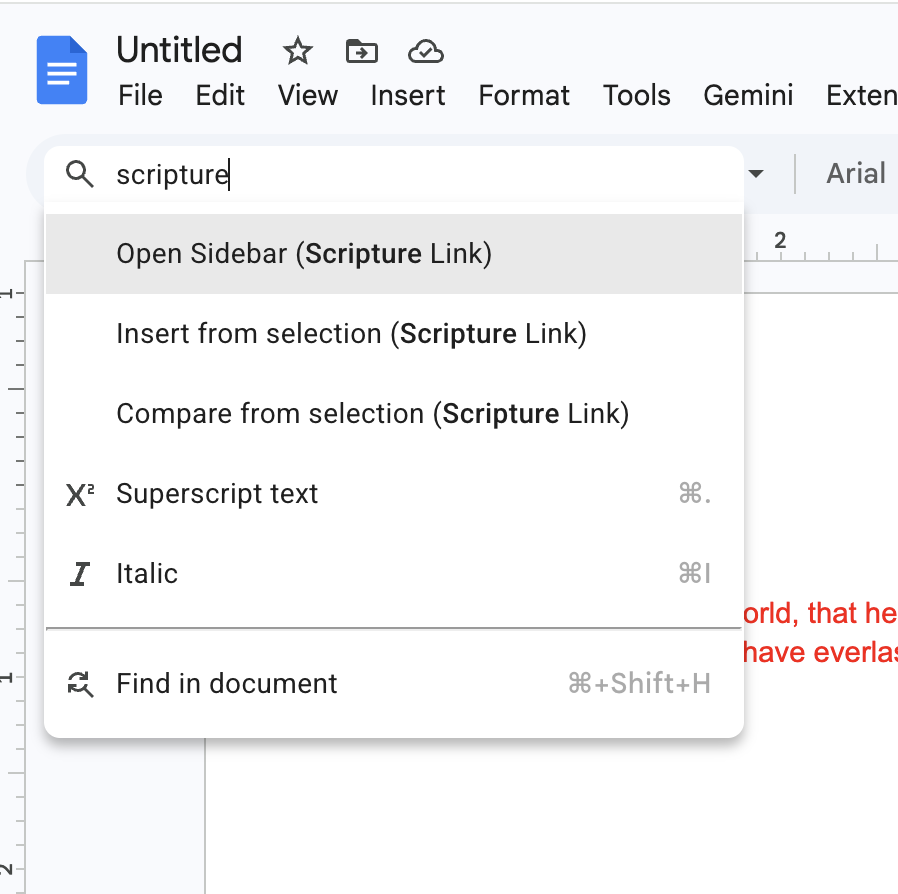
- The Fast Way (Keyboard Shortcut): If you are on a Mac, press Option + /. If you are on Windows or a Chromebook, press Alt + /. A small search box will pop up. Type the word Scripture and press Enter.
2. Finding and Adding Bible Verses
Once the Scripture Link sidebar is open on the right side of your screen, finding a verse is simple.
Searching by Typing
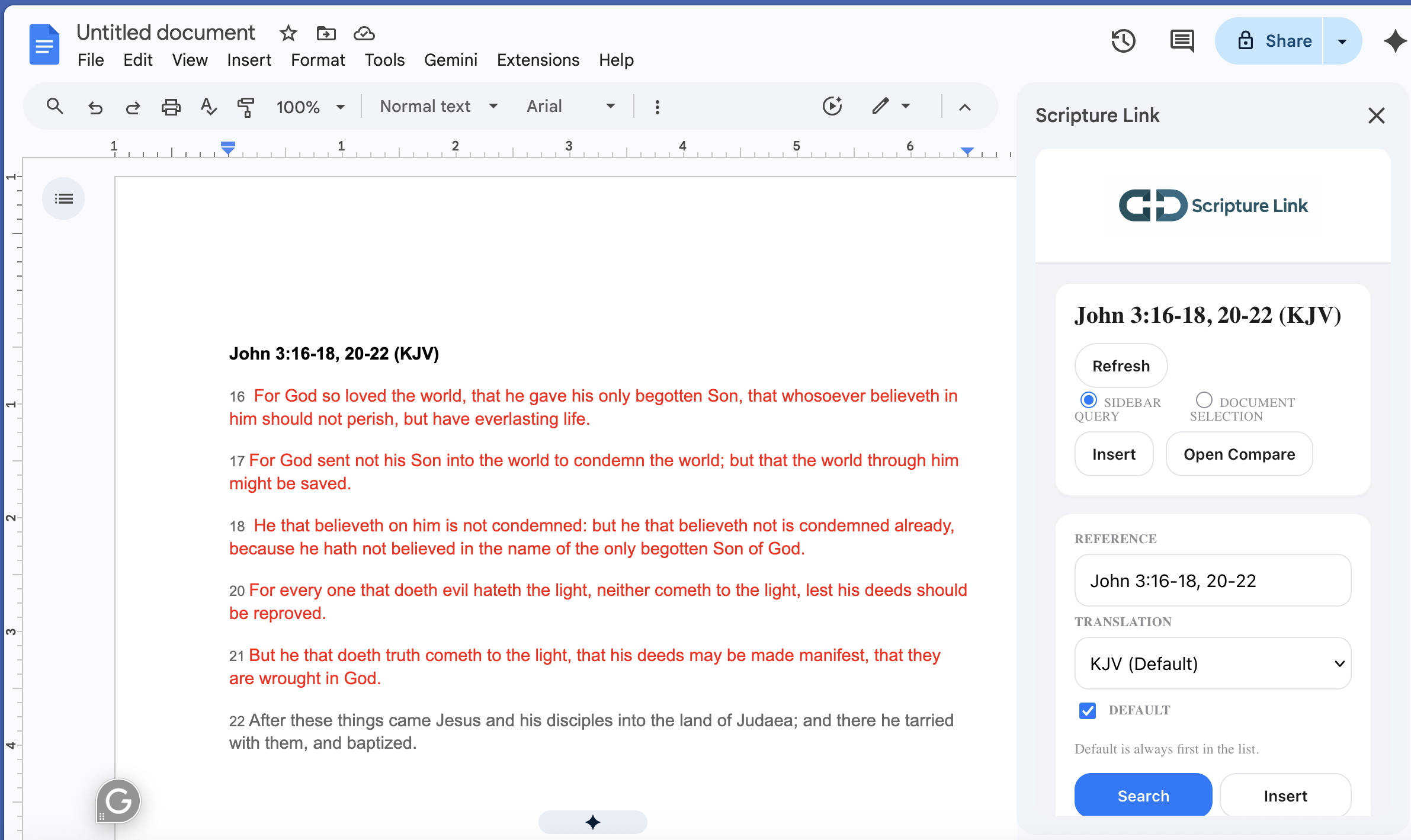
Click inside the search box at the top of the sidebar and type the verse you want. You can search for one verse or many verses at once:
- John 3:16 — Finds just that one verse.
- Genesis 1:1-10 — Finds verses 1 through 10.
- Psalm 23:1, 4, 6 — Skips around and finds only the exact verses you type.
Searching Using Text in Your Document
If you already typed a verse like "Romans 8:28" in your document, just use your mouse to highlight it. Then, look at the sidebar, choose the "Document selection" circle, and click the Refresh button. The verse will automatically load for you!
Putting the Verse into Your Document
When you see the verse you want in the sidebar, just click the big blue Insert button. The verse will instantly be typed into your document exactly where your blinking cursor is.
4. Comparing Different Bible Translations
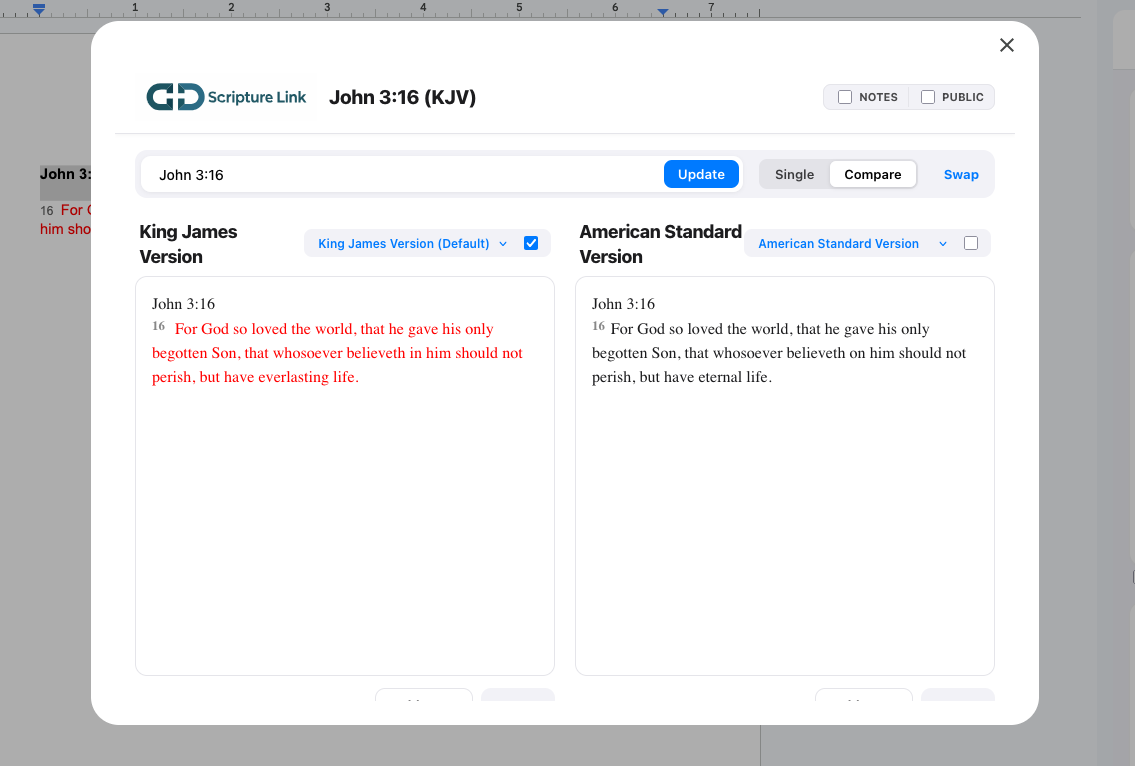
Sometimes reading a verse in a different Bible translation helps make it clearer. We have a tool called the Compare View that lets you do this easily.
Near the top of the sidebar, click the Open Compare button. A new window will pop up showing two different Bible translations side-by-side. When you scroll down to read one side, the other side scrolls with it so you never lose your place!
5. Writing Notes and Reading Community Insights
Scripture Link isn't just for reading; it's also a digital study journal.
Your Personal Notes: Whenever you write a note on a verse, it is saved securely. Only you can see your personal notes, so feel free to write down your prayers, sermon ideas, or study thoughts.
Public Notes: If you check the box that says "Show public notes", you will be able to read helpful thoughts and study notes shared by other people who use Scripture Link around the world.
6. Keeping Your Notes Organized
As you use Scripture Link more, you might write a lot of notes. Here is how we help you keep them neat and easy to find:
Using Tags
When you write a note, you can add a "Tag" to it. A tag is like putting your note in a folder. You can use tags we provide (like "Theology" or "Prophecy") or type your own custom tags to create your own system.
Searching Your Notes
Looking for a note you wrote last month? Click the Notes tab at the bottom of the sidebar. You can type a keyword into the Note Search box, or pick a tag from the list, to instantly find the note you are looking for.